
Everything you need to get the most out of MeshWrench.
Real screenshots, real steps. Every workflow below was captured directly from the live tools — nothing here is a mockup.
Choose the right tool for the job
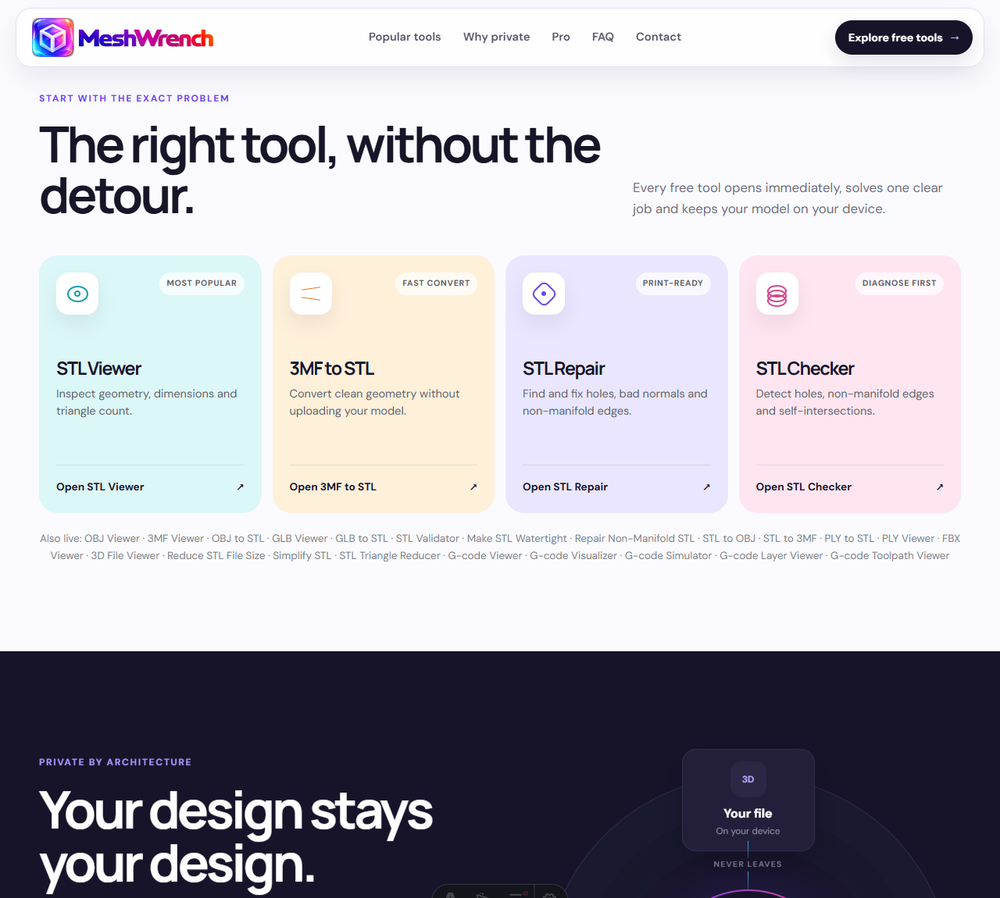
Every free tool opens immediately from the homepage's tool grid, solves one clear job, and keeps your file on your device the entire time. There's no dashboard to navigate — pick the exact task you need and go straight to a working tool.
- Go to the homepage and scroll to "The right tool, without the detour."
- Pick the tool matching your task — a viewer to inspect a file, a converter to change formats, or Repair/Checker to fix or diagnose problems.
- Every tool page also lists its close relatives ("Also live: ...") if the first one you land on isn't quite the right fit.
View a 3D file
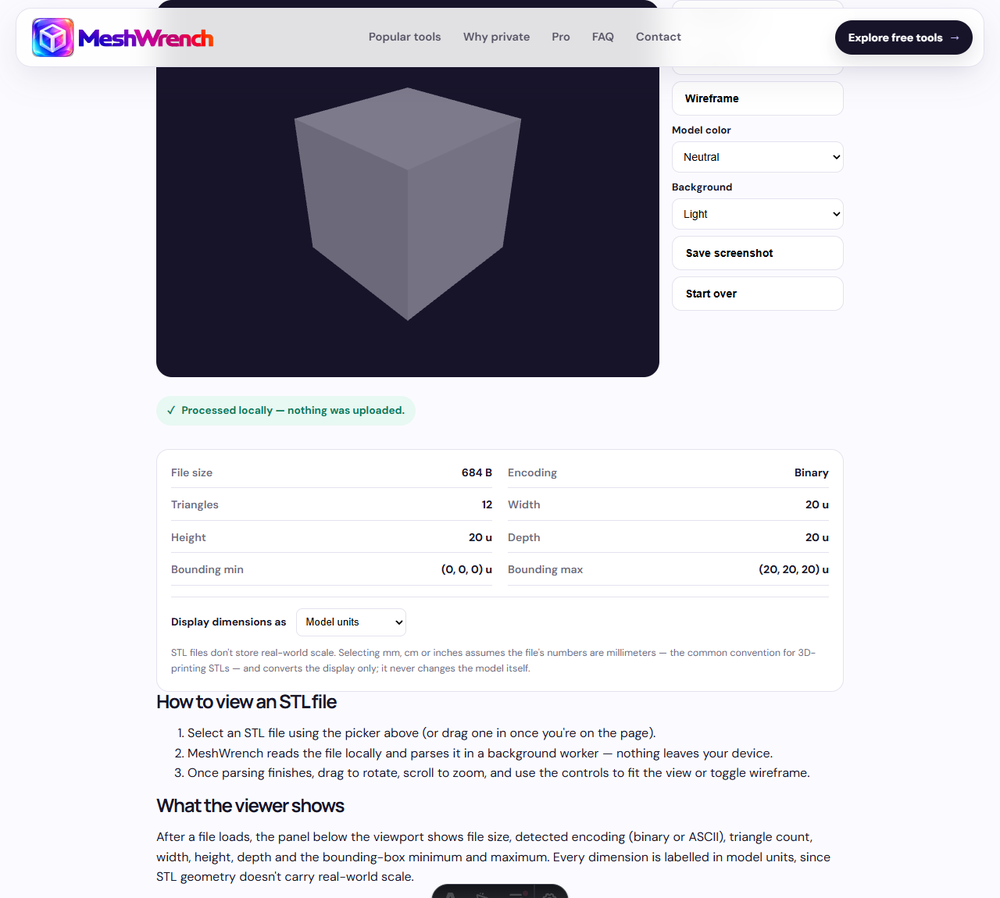
Every viewer — STL, OBJ, 3MF, GLB, PLY, FBX, or the format-detecting Universal Viewer — follows the same pattern:
- Open the matching viewer and select your file — or drag one onto the page.
- MeshWrench reads and parses it locally in a background worker. Nothing leaves your device.
- Once parsing finishes, drag to rotate, scroll to zoom, and use the side controls to toggle wireframe, change the background, or save a screenshot.
- The panel below the viewport shows real file details — size, encoding, triangle count, dimensions and bounding box.
Convert between formats
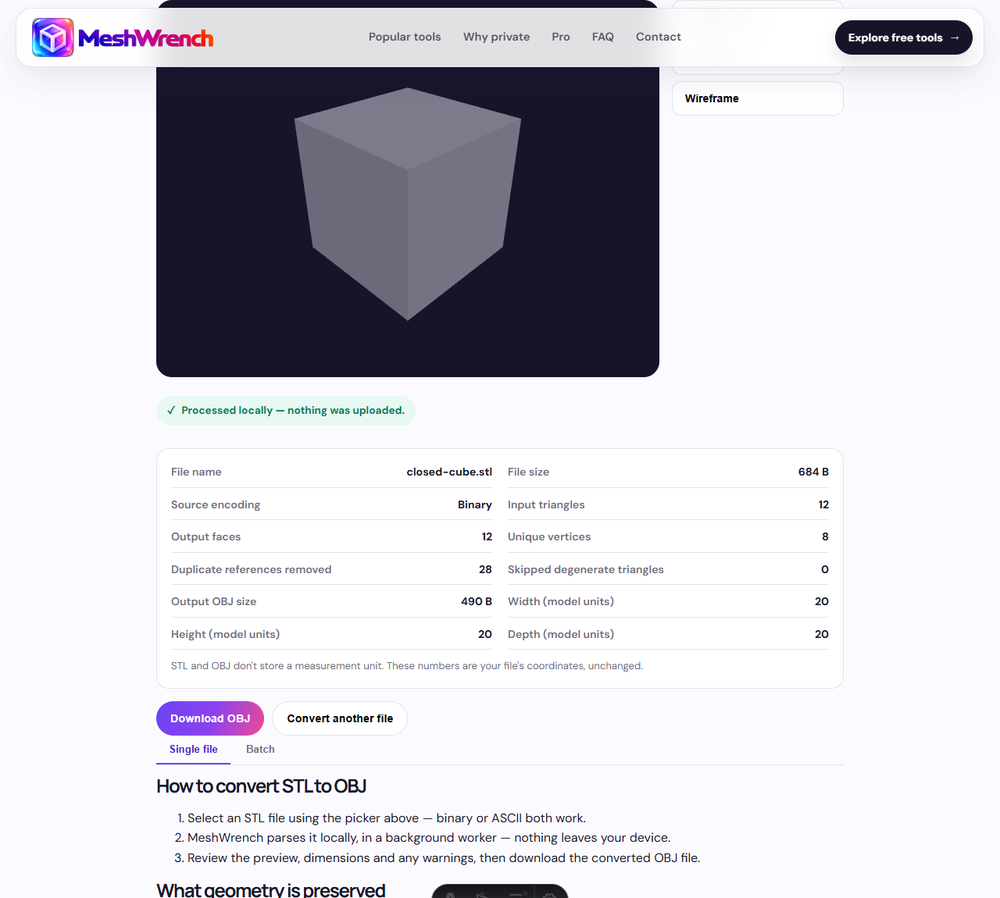
Converters — 3MF, OBJ, GLB or PLY to STL, and STL to OBJ or 3MF — all work the same way, with no separate "Convert" button — selecting a valid file starts conversion automatically:
- Open the converter for your source and target format, then select your file.
- The file is parsed and converted locally in a worker — you'll see a live preview of the result.
- Review the conversion summary (input/output triangle counts, unique vertices, any skipped or degenerate geometry) before downloading.
- Click Download to save the converted file. Nothing was ever sent anywhere to produce it.
Repair a broken STL
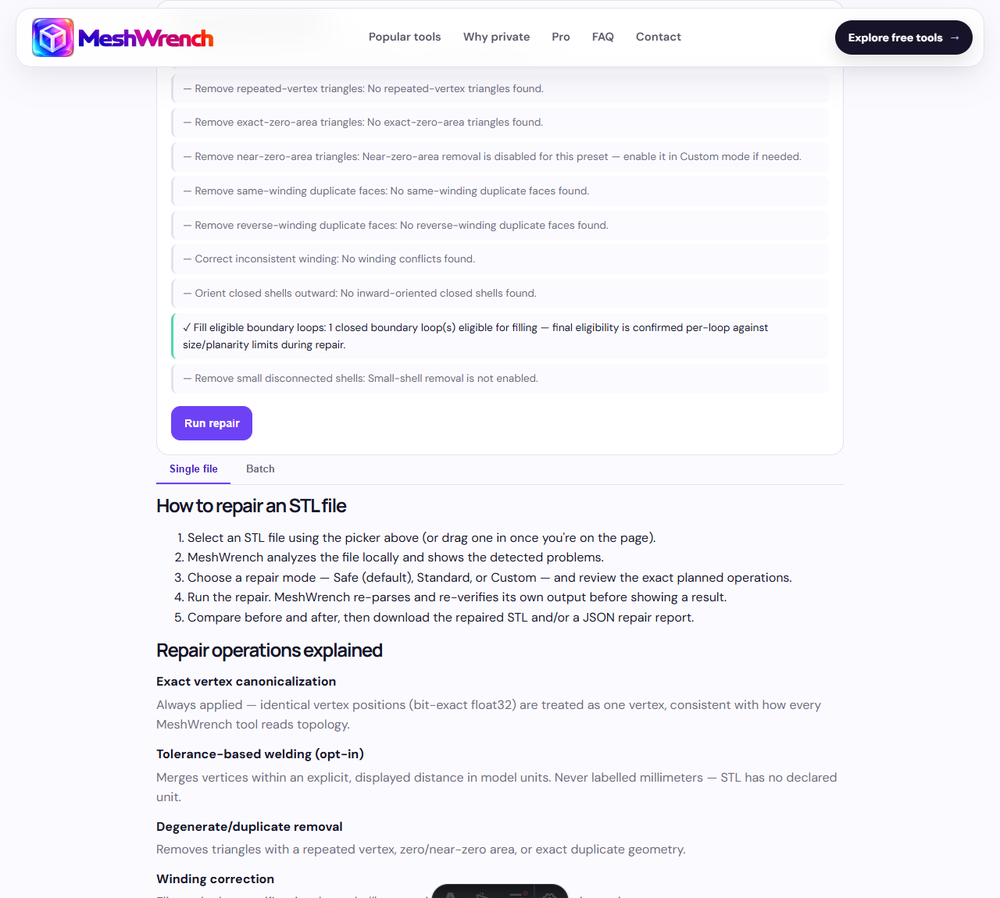
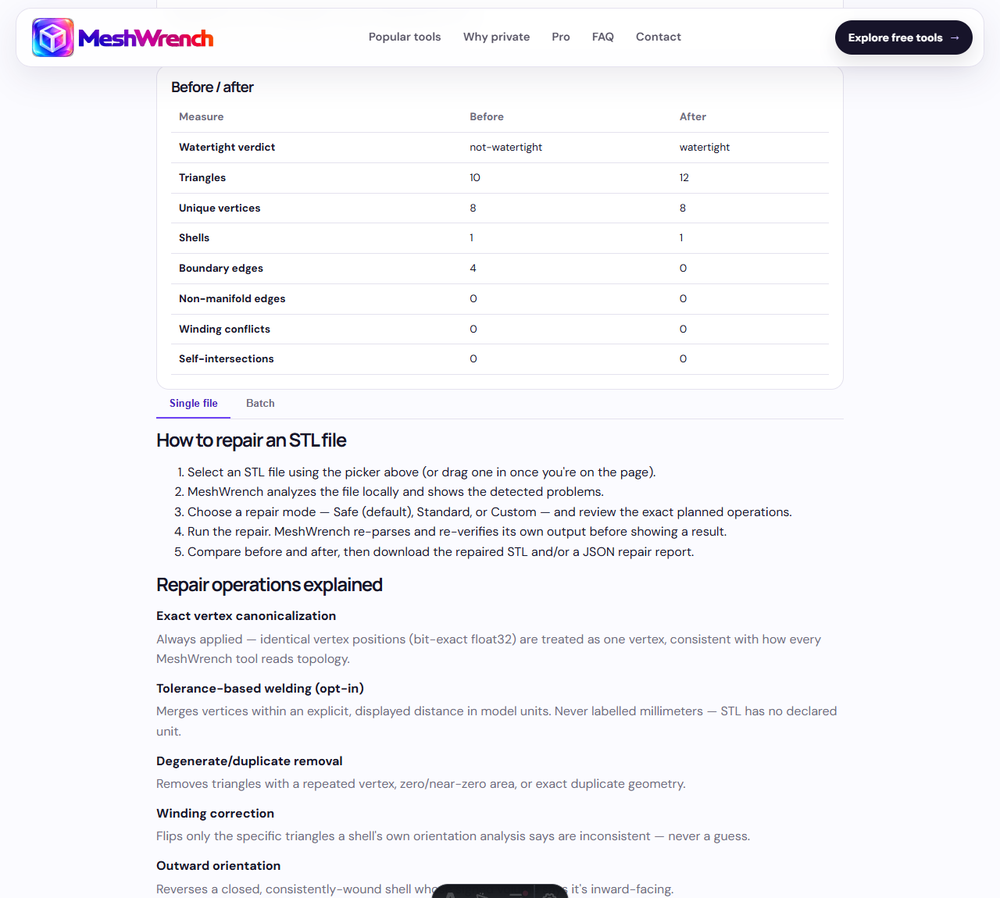
STL Repair uses a plan-then-run workflow so you always see exactly what will change before anything does:
- Open STL Repair and select your file. It's analyzed locally and the detected problems are listed.
- Choose a repair mode — Safe (default), Standard, or Custom — and review the exact planned operations for each.
- Click "Run repair." The output is re-parsed and re-verified before it's ever shown to you as a result.
- Compare the before/after table, then download the repaired STL and/or a JSON repair report.
Go Pro when one file becomes a folder
Every free tool above already handles a single file at full quality, forever, with no account. MeshWrench Pro is for when that same job needs doing across a whole folder:
- Batch entire folders through the same conversion, repair or optimization pipeline, one queue instead of one file at a time.
- Reusable presets for repair and optimization settings, so you set them up once.
- Larger, offline-friendlier queues for bigger jobs.
- No ads, on top of the same local-only privacy every free tool already has.
Pro appears as a "Batch" tab right on the tool pages you already use — no separate app to learn. See Pricing for the full details.
Buy, activate, or recover your Pro license
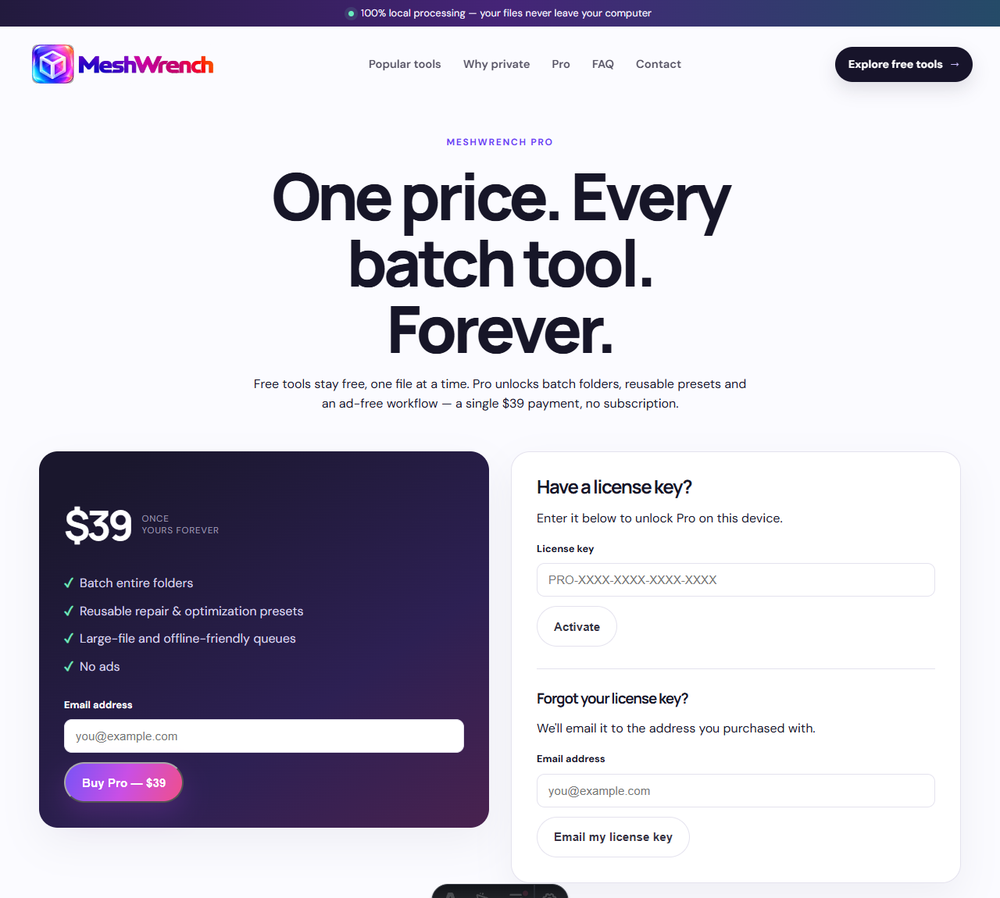
- Go to the pricing page and enter your email to buy Pro — a one-time $39 payment, no subscription.
- After payment, you're automatically redirected back and Pro activates on that device. You'll also get a welcome email with your license key.
- On a new device, or if your browser storage was cleared: go back to the pricing page, enter your license key under "Have a license key?" and click Activate.
- Lost the key itself? Use "Forgot your license key?" — enter the email you purchased with and we'll send it to you.
Why nothing here ever touches a server
There is no file-processing backend anywhere in MeshWrench — not for free tools, not for Pro. Every viewer, converter, repair and optimization tool reads your file with the browser's own File API, hands its bytes to a Web Worker running on your device, and does everything else — parsing, processing, rendering, and generating the download — locally. You can verify this yourself: open your browser's developer tools, watch the network tab, and process a file. No request containing your file will ever appear.
Frequently asked questions
Are my files uploaded anywhere?
No. Every tool reads your file with the browser's local File API and processes it in a background Web Worker on your own device. Nothing is sent to a server — you can confirm this yourself by opening your browser's network tab while a file loads.
Do I need to create an account?
No. Every free, single-file tool works with no signup, no login and no email address required.
My file won't load — what should I check first?
Confirm the file actually matches its extension (a renamed file will fail), that it isn't corrupted or truncated, and that it's under the tool's size limit. Each tool's own page explains its specific format requirements in the sections above.
Is there a file size limit?
Yes, a safety ceiling protects your browser from freezing on extremely large files — it's a browser-stability limit, not a paid-tier restriction. Every file under the limit gets the complete tool for free.
Which browsers are supported?
Any recent version of Chrome, Firefox, Safari or Edge with WebGL and Web Worker support — the same requirement every tool page lists individually.
What's the difference between the free tools and Pro?
Free tools handle one file at a time, fully, at full quality, forever. Pro adds batch processing of whole folders, reusable repair/optimization presets, larger queues and an ad-free workflow — see the Pro section above.
I lost my Pro license key — what now?
Go to the pricing page and use "Forgot your license key?" — enter the email you purchased with and we'll send it to you.
Something still isn't working — what do I do?
Send us a message on the Contact page with what you tried and what happened. We read every message.
Still stuck? Send us a message — we read every one.